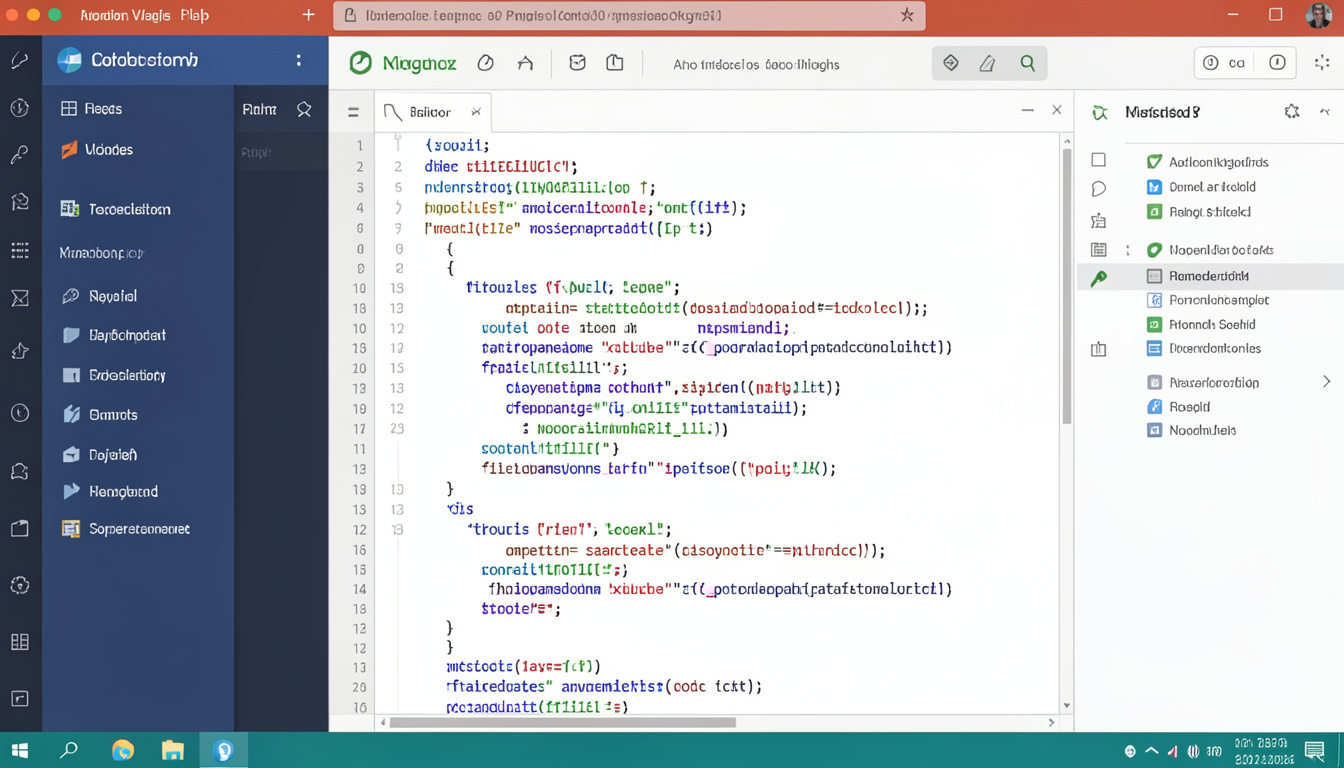
Have you ever wanted a digital scratchpad where you can write code and see the results instantly? If you are into data science or learning to code, the jupyter notebook is your best friend. It is a web-based tool that lets you combine live code, math equations, and pretty charts all in one place. Most people love it because it makes complex work feel like writing in a personal diary. Instead of running a whole program just to see one small change, you can run small bits of code one by one. This saves a lot of time and helps you catch mistakes before they grow into big problems.
I remember the first time I used a jupyter notebook for a school project. I was so confused by traditional coding editors, but this felt different. It was like I was talking to the computer and it was answering me back in real-time. Whether you want to analyze sports stats or build a cool AI, this tool is the gold standard. It is free, open-source, and used by the smartest engineers at companies like Google and NASA. In this guide, we will break down everything you need to know about this amazing software in simple words.
Table of Contents
What Exactly is a Jupyter Notebook?
At its heart, a jupyter notebook is a document that runs in your web browser. You do not need a constant internet connection if you install it on your computer, but it looks like a website. It supports many languages, though most people use it for Python. The name “Jupyter” actually comes from three core languages: Julia, Python, and R. It uses “cells” to organize your work. You can have a cell for a title, a cell for your code, and another cell for a graph. This structure makes your projects look very neat and professional.
Why Data Scientists Love This Tool
Experts choose the jupyter notebook because it tells a story with data. When you show a boss or a teacher a long list of code, they might get a headache. But when you use this tool, you can explain what the code does using simple text right next to it. It is perfect for data cleaning, which is the boring part of data science where you fix messy numbers. You can see the data change step-by-step. This transparency builds a lot of trust because anyone can follow your logic from start to finish.
Comparing Popular Data Science Tools
| Feature | Jupyter Notebook | VS Code | PyCharm |
| Best For | Data Analysis | Web Development | Large Software |
| Interface | Cell-based | Text Editor | Full IDE |
| Visuals | Excellent Charts | Moderate | Basic |
| Learning Curve | Very Easy | Medium | Hard |
How to Install Your First Notebook
Getting started with a jupyter notebook is easier than you think. The most common way is to download “Anaconda.” Anaconda is like a big toolbox that comes with Python and the notebook already inside. Once you install it, you just click a button, and a new tab opens in your browser. If you are more tech-savvy, you can use a command called “pip” to install it manually. Personally, I suggest the Anaconda route for beginners because it handles all the technical settings for you. It ensures everything works perfectly the first time you try to code.
Understanding Cells and How They Work
In a jupyter notebook, everything happens inside a cell. There are two main types you need to know: Code cells and Markdown cells. Code cells are where you type your Python instructions. When you press “Shift + Enter,” the computer runs that specific cell. Markdown cells are for writing regular text, like the words you are reading now. You can even add bold text, lists, and links. Mixing these two types of cells is the secret sauce to making a “Helpful Content” piece that others can actually understand and use.
Visualizing Data with Ease
One of the coolest things about the jupyter notebook is how it handles pictures. If you write code to make a pie chart or a bar graph, the image pops up right below your code. You do not have to open a separate window or save a file to see it. This instant feedback is great for spotting trends in data. For example, if you are tracking NBA player stats, you can instantly see a graph of who scored the most points. It makes the data feel alive and much easier to digest for everyone.
Sharing Your Work with the World
After you finish a project in your jupyter notebook, you will probably want to show it off. You can save your file as a PDF, an HTML webpage, or even a slideshow. Many programmers share their notebooks on a site called GitHub. This allows other people to see your code and run it themselves. It is a fantastic way to build a portfolio if you are looking for a job. By sharing your work, you show that you have the expertise and authority that employers are looking for in 2026.
Using Shortcuts to Work Faster
To be a pro at using a jupyter notebook, you should learn a few keyboard shortcuts. Instead of clicking menus with your mouse, you can use your keys. For instance, pressing “A” adds a new cell above your current one, and “B” adds one below. These small tricks might seem minor, but they save a lot of energy when you are working on a long project. I found that once I memorized five or six shortcuts, my coding speed doubled. It allows you to stay focused on the data rather than the software.
The Importance of the Jupyter Community
The jupyter notebook is not just a piece of software; it is a massive community of helpful people. Because it is open-source, thousands of developers around the world work to make it better every day. If you ever get stuck, you can find the answer on websites like Stack Overflow in seconds. There are also millions of free notebooks online that you can download to learn how the experts do things. This support system makes it the most trustworthy tool for anyone starting their journey in the world of technology.
Exploring JupyterLab: The Next Step
As you get more comfortable, you might hear about JupyterLab. This is basically a more powerful version of the classic jupyter notebook. It lets you open multiple tabs, use a file browser, and even look at CSV files all on one screen. It is like upgrading from a simple notebook to a full-blown office desk. Most professionals are moving toward JupyterLab now because it handles bigger projects more efficiently. However, the core experience stays the same, so everything you learn in the basic version still applies there.
Conclusion
The jupyter notebook is a game-changer for anyone who wants to work with data or code. It breaks down the walls between complex programming and simple storytelling. By following the steps in this guide, you can set up your own environment and start creating amazing projects in no time. Remember to keep your code clean, use Markdown to explain your thoughts, and don’t be afraid to experiment. The best way to learn is by doing, so open a new notebook and write your first line of code today.
Frequently Asked Questions
1. Is Jupyter Notebook free to use?
Yes! It is completely free and open-source. You can download it and use it for any personal or professional project without paying a cent.
2. Do I need to know Python to use it?
While you can use other languages, Python is the most popular. Having a basic understanding of Python will help you get the most out of your jupyter notebook.
3. Can I use it on a tablet or phone?
It is best used on a computer (Windows, Mac, or Linux). However, there are cloud versions like Google Colab that allow you to use it through a mobile browser.
4. What is the difference between a cell and a kernel?
A cell is where you write your work. The kernel is the “brain” in the background that actually runs the code and sends the results back to you.
5. How do I save my progress?
The jupyter notebook usually autosaves every few minutes. You can also click the floppy disk icon or press “Ctrl + S” to save manually at any time.
6. Why is my notebook not running?
Usually, this happens if the kernel is busy or crashed. You can simply go to the “Kernel” menu and click “Restart” to get everything moving again.